MileageWise allows you to copy or transfer an individual trip or an entire day of trips to a different date or vehicle. Copying creates a duplicate while keeping the original trip or day unchanged. Transferring moves the trip or day to the selected date and vehicle.
How to Copy or Transfer a Trip or an Entire Day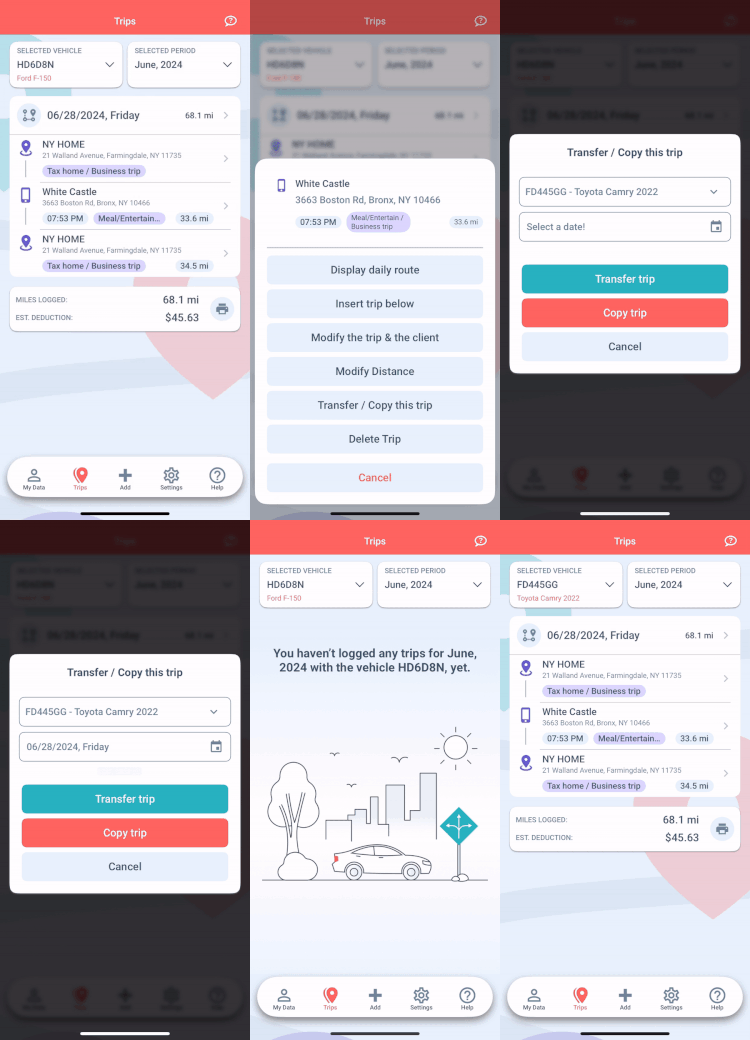
- Select a trip or day. Tap on the trip you want to copy or transfer, or tap on the day if you want to move or duplicate all trips from that day.
- Choose an action. In the bottom sheet menu, select Transfer / Copy this trip or Transfer / Copy entire day, depending on what you want to copy or transfer.
- Select a vehicle and date. In the pop-up window, choose the destination vehicle and the date you want to copy or transfer the trip or day to.
- Confirm your action. Choose one of the following options:
- Transfer trip / Transfer day: Moves the selected trip or entire day to the chosen vehicle and date.
- Copy trip / Copy day: Creates a copy on the chosen vehicle and date while keeping the original trip or day unchanged.
- Cancel: Closes the window without making any changes.
This feature helps you manage your mileage log more efficiently by reusing existing trip details or moving trips between dates and vehicles instead of entering them manually.
