If MileageWise creates new addresses instead of recognizing your saved clients, your Saved Client Recognition setting may need adjustment.
This setting determines how far the recorded GPS coordinates can be from a saved client’s location for the app to recognize that client.
How to Adjust Saved Client Recognition
- Open the MileageWise app.
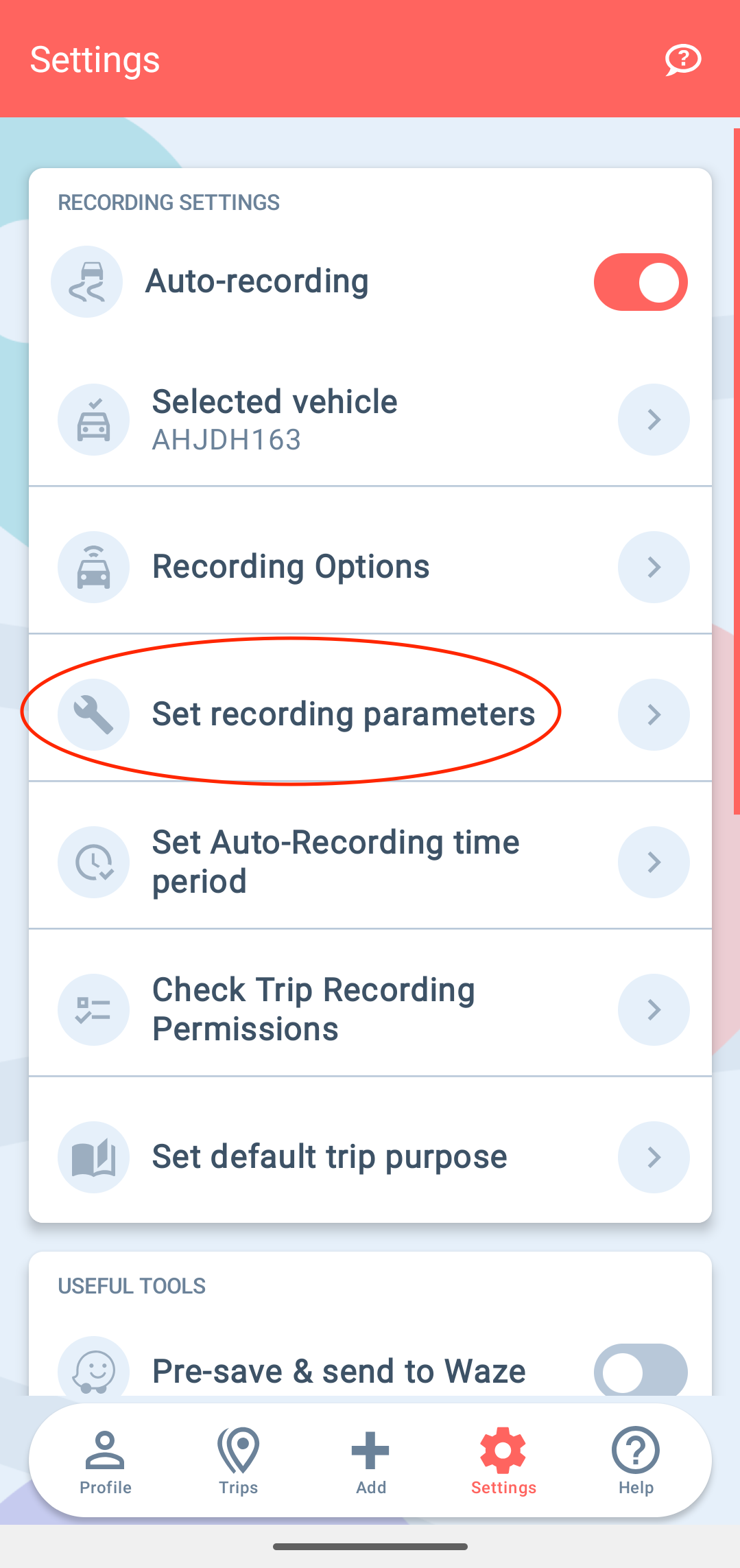
- Go to Settings → Set Recording Parameters.
- Find Saved Client Recognition and adjust the distance using the slider.
The optimal distance depends on your driving environment and how closely your saved client addresses match their actual locations.
What Distance Should I Choose?
- Around 250 feet: A good starting point for most users driving in urban areas. We don’t recommend setting the distance significantly below this value, as the app may fail to recognize an existing saved client and create a new address instead.
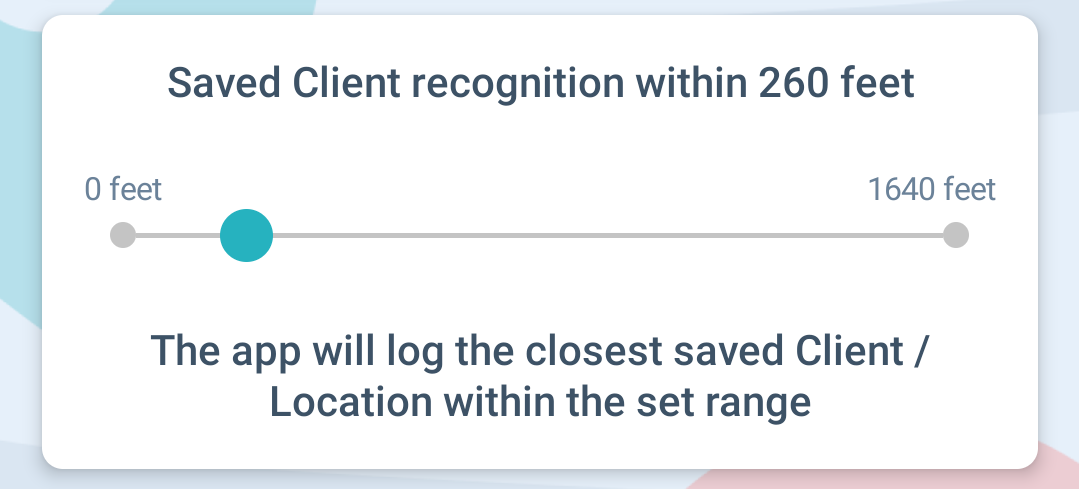
- A higher distance: May be more suitable in some environments, depending on the accuracy of your saved addresses and GPS coordinates. However, setting the distance too high can reduce accuracy, as the app may associate a trip with a saved client located hundreds or even thousands of feet away.
What Happens If Multiple Saved Clients Are Nearby?
If multiple saved clients fall within the configured recognition distance, MileageWise selects the one closest to the recorded GPS coordinates.
For this reason, choose a distance that allows the app to recognize your saved clients without including locations that are too far away.
Our recommendation: Start with approximately 640 feet if you primarily drive in urban areas, then adjust the distance based on your results. Avoid setting it too low or too high to help maintain accurate client recognition.
