What Is the Auto-Recording Time Period?
The Auto-Recording Time Period lets you choose the days and hours during which automatic trip recording is allowed. This helps you control when MileageWise records your trips automatically based on your schedule.
If a trip takes place outside the configured time period, it won’t be recorded automatically.
How to Set Up Your Schedule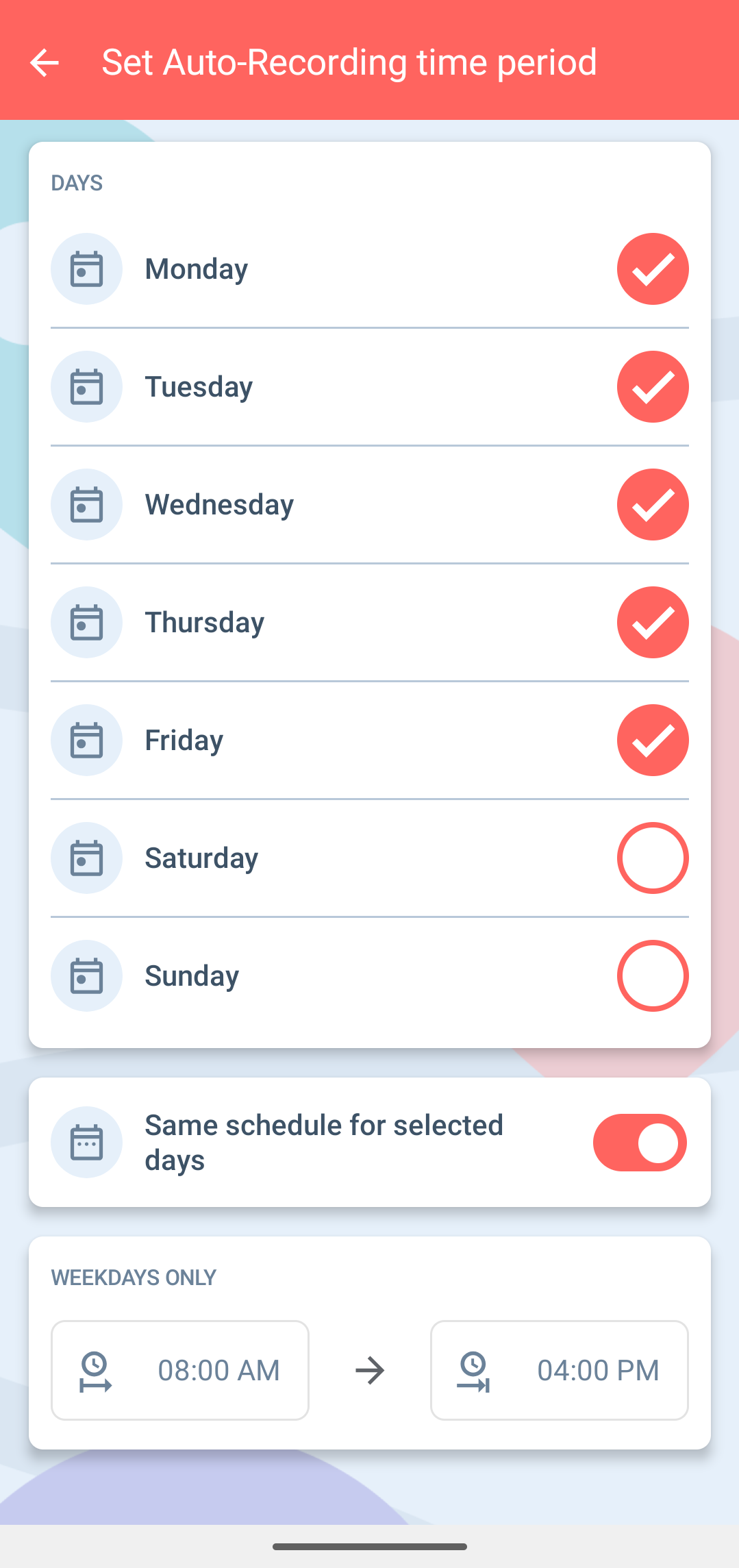
- Open the MileageWise app.
- Go to Settings → Set Auto-Recording Time Period.
- Select the days when you want automatic trip recording to be active. A checkmark indicates that a day is selected.
- Choose whether to use the same schedule for all selected days:
- ON – Same schedule for selected days: The same start and end times apply to every selected day.
- OFF – Same schedule for selected days: You can set different start and end times for each selected day.
- Set the start and end times for the selected days.
Important Notes About Time Settings
-
Each time period must fit within a single calendar day (12:00 AM–11:59 PM) and cannot extend across midnight into the following day.
For example, you cannot configure a schedule from 8:00 PM to 2:00 AM. Instead, set up separate time periods for each day. - Only selected days are included in your schedule.
How to Save Your Settings
Once you have configured your schedule, tap the Back button in the top-left corner to return to the Settings tab. Your settings are saved when you return to the previous screen.
Still Need Help?
If your trips aren’t being recorded automatically, check that the correct days and times are selected. You can also read our guide, Why Wasn’t My Trip Recorded?, for additional troubleshooting steps.
If you need further assistance, please contact our Customer Support team.
