1. Check Your App Permissions and Recording Settings
First, make sure MileageWise has all the permissions required for your selected recording method.
Open the MileageWise app and check for any warning message displayed at the top of the screen. If you see a message indicating that a required permission or setting is missing, follow the instructions provided to resolve the issue.
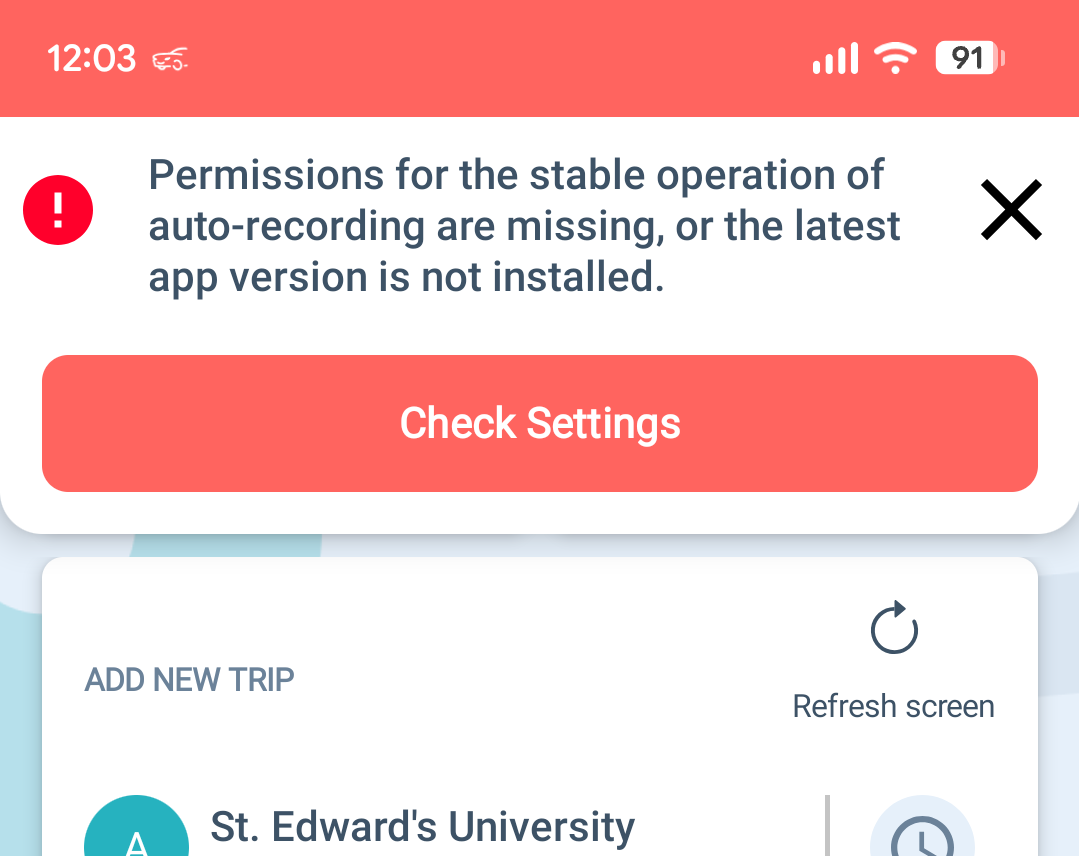
You can also review your recording method and related settings in the app.
The permissions required for automatic recording vary depending on your device and the recording method you’ve selected. Make sure all the necessary permissions are enabled.
Check Your Phone’s Battery-Saving Settings
Low Power Mode on iPhone and Battery Saver on Android can restrict background activity and interfere with GPS-based trip recording.
These features may also turn on automatically under certain conditions, such as when your battery level drops below a specified percentage.
Check your phone’s battery settings to see whether Low Power Mode, Battery Saver, or any automatic battery-saving schedules are enabled. If necessary, disable these features or adjust their activation conditions to prevent them from interfering with automatic trip recording.
For more information, see the official guides:
- Apple: Use Low Power Mode to save battery life on your iPhone or iPad
- Google: Use Battery Saver on a Samsung phone
On some Android devices, additional manufacturer-specific battery optimization settings may also restrict background activity. If you use a Google Pixel, OnePlus, Xiaomi, or HONOR phone, see our guide to Android Manufacturer-Specific Troubleshooting for further instructions.
2. Does My Vehicle Have an Active Subscription or Package?
MileageWise subscriptions and packages are associated with individual vehicles, not with your account as a whole. To record trips for a specific date, the selected vehicle must have an active subscription or package that covers that date.
If your free trial has ended or your subscription or package has expired, trip recording may not be available for dates that aren’t covered by your vehicle’s access.
Check your vehicle’s subscription or package status to make sure it covers the period you want to record trips for.
-
Have I Selected the Correct Vehicle?
If you have multiple vehicles in your MileageWise account, make sure you’ve selected the vehicle you want to record trips for.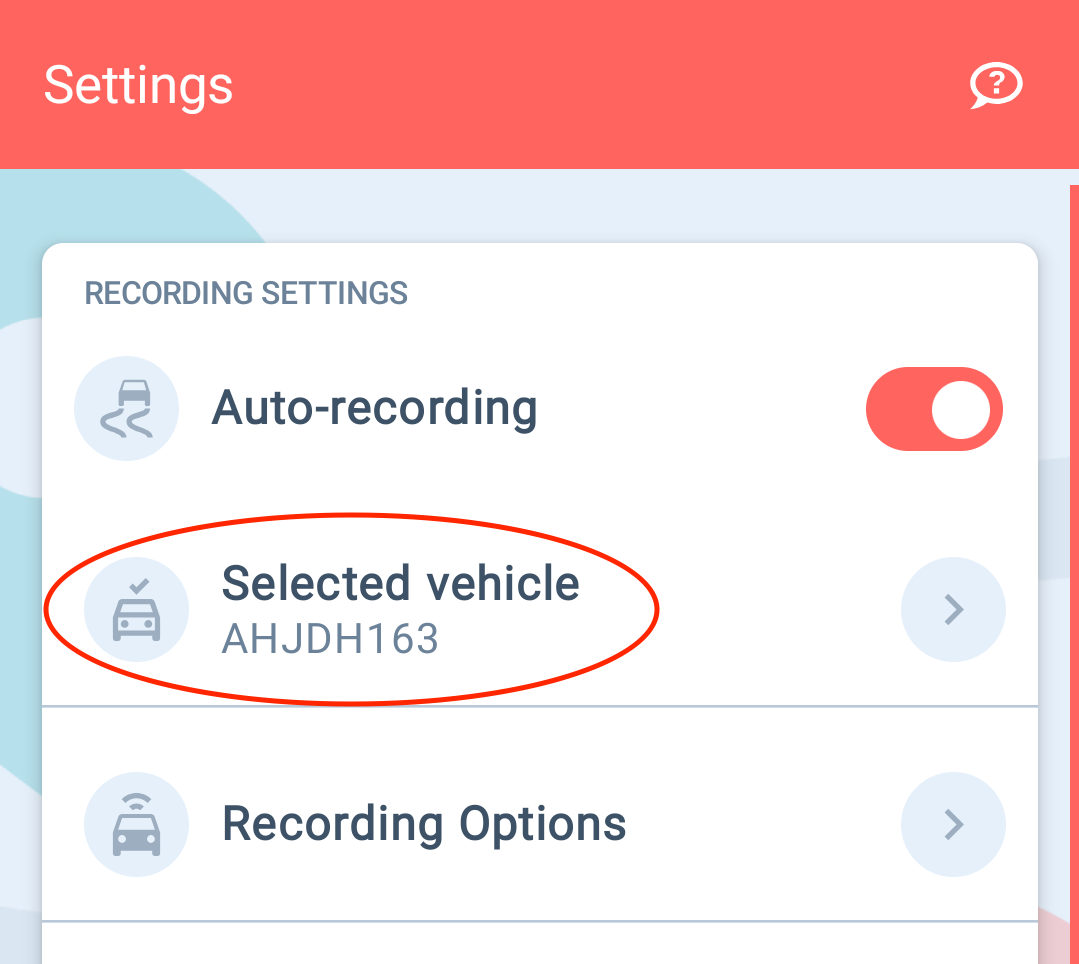
You can check your selection in the MileageWise app under Settings → Selected Vehicle (the second option).
If the wrong vehicle is selected, switch to the correct one and check that it has an active subscription or package covering the relevant date.
3. Using Bluetooth Monitoring? Check Your Bluetooth Connection
If you’re using Bluetooth Monitoring and your trips aren’t being recorded, follow these steps.
- Step 1: Check the Selected Bluetooth Device
Make sure MileageWise is monitoring the correct Bluetooth device associated with your vehicle.
If you’ve selected the wrong device, such as your headphones instead of your car’s Bluetooth system, the app won’t be able to detect the expected connection.
Open the recording settings in MileageWise and verify that the correct device is selected.
-
Step 2: Check Whether Recording Starts When You Enter Your Car
Get into your vehicle, turn on the ignition, and check whether your phone connects to the selected Bluetooth device.
When the expected Bluetooth connection is established, MileageWise should recognize it and initiate the recording process. You can check whether the app starts recording by looking for the corresponding notification on your phone.
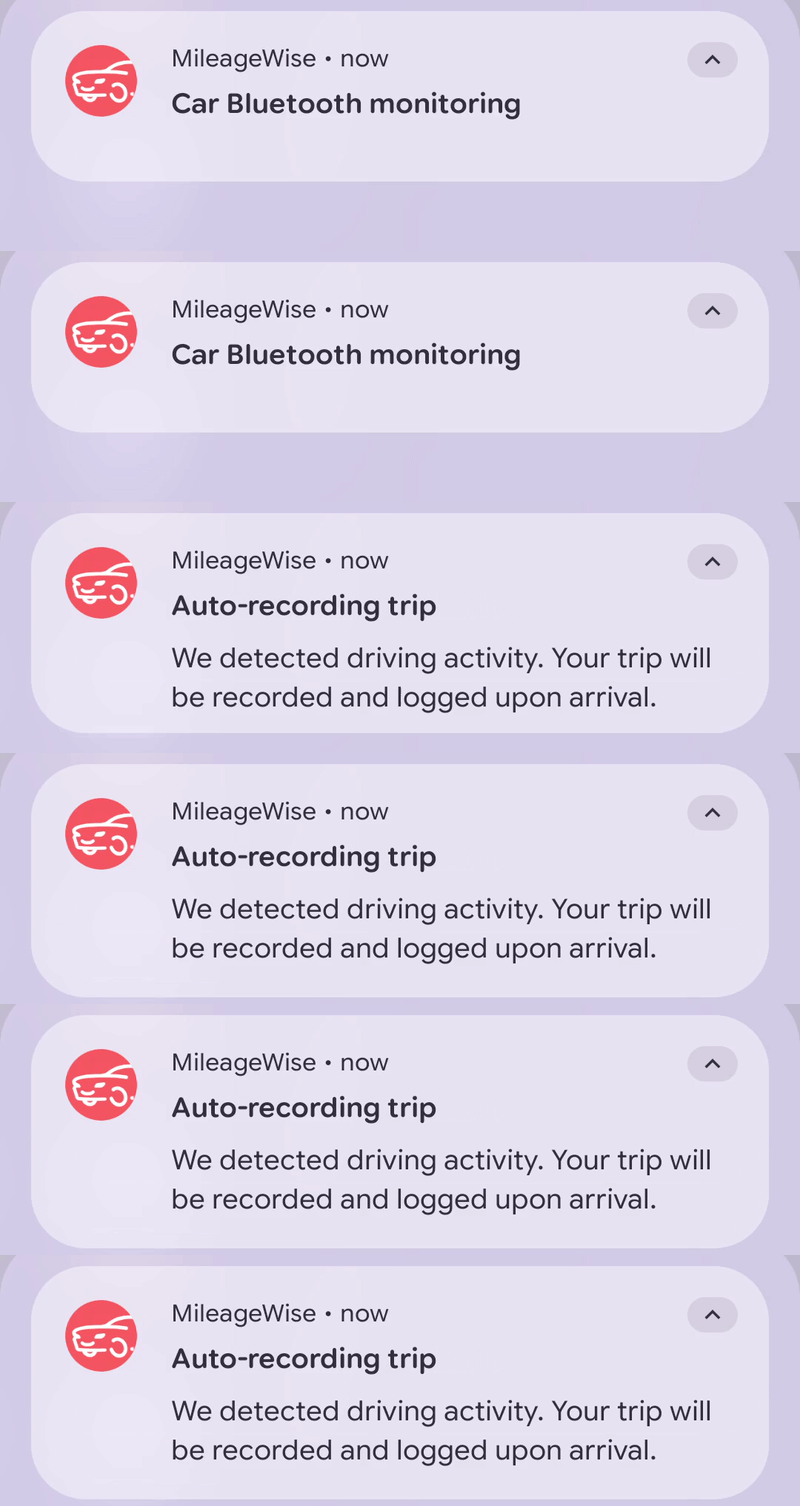
If the phone doesn’t connect to the correct device or recording doesn’t start, continue to the next step.
-
Step 3: Reconnect Your Bluetooth Device
If the Bluetooth connection isn’t working as expected, remove the existing pairing and set it up again.
- Open your phone’s Bluetooth settings.
- Find your vehicle’s Bluetooth device.
- Select Forget Device or the equivalent option on your phone.
- Pair your phone with the vehicle again.
- Open MileageWise and make sure the correct Bluetooth device is selected.
For detailed instructions, follow the official guide for your device:
- Apple: Connect and unpair a Bluetooth device
- Google: Fix Bluetooth problems on Android
-
Step 4: Check Whether You’re Using Wireless Apple CarPlay or Android Auto
If you use wireless Apple CarPlay or Android Auto, this connection method may interfere with Bluetooth Monitoring.
These systems typically use Bluetooth to establish the initial connection and then switch to Wi-Fi for ongoing communication. As a result, your phone’s Bluetooth connection may not behave as expected for MileageWise’s Bluetooth Monitoring feature.
To check whether this is causing the issue, try connecting your phone to your vehicle’s Bluetooth system without using wireless CarPlay or Android Auto, then test automatic trip recording again.
4. Check Your Internet Connection
A stable internet connection is required to complete trip recording successfully.
When a trip ends, MileageWise sends the recorded trip data to our servers. If your phone doesn’t have an active internet connection at that moment, the app will attempt to retry the submission for a limited time.
If the connection isn’t restored and the retry attempts fail, the trip may be lost and cannot be recorded successfully.
To help prevent this:
- Make sure mobile data or Wi-Fi is available when your trips end.
- Check whether you have reliable network coverage in the areas where you usually drive.
- If you frequently experience connectivity issues, test trip recording in an area with a stronger signal.
Please note that this requirement applies to all recording methods.
5. Make Sure You’re Using the Latest App Version
We continuously maintain and improve MileageWise to support reliable trip recording.
For the best experience, make sure you’re using the latest version of the MileageWise Tracker app available for your device.
Check the App Store or Google Play Store for available updates and install the latest version.
6. Review Settings That Can Affect Automatic Recording
Several settings determine when MileageWise records trips and how it behaves in the background. Incorrect settings may prevent recording or cause unexpected results.
Auto-Recording Time Period
The Auto-Recording Time Period lets you define the days and hours during which automatic trip recording is allowed.
If your trip takes place outside the configured time period, it won’t be recorded automatically.
Open MileageWise and go to Settings → Set Auto-Recording Time Period to review your schedule.
Learn more about Auto-Recording Time Period.
Automatic Recording On/Off Switch
MileageWise also allows you to temporarily disable automatic recording through a switch in the Settings menu.
When you turn automatic recording off, the app asks when it should be turned back on. If you select Never, automatic recording will remain disabled until you manually enable it again.
If your trips aren’t being recorded, check that automatic recording hasn’t been disabled.
Learn more about controlling automatic recording.
7. Check Your Device’s Condition and Settings
Automatic trip recording relies on your phone’s GPS, Bluetooth, internet connection, and background activity.
If your device has a faulty GPS sensor, Bluetooth connectivity problems, battery issues, or other hardware or software faults, MileageWise may not function reliably.
Make sure your phone’s operating system is up to date and restart your device if you experience persistent issues.
If you’re using an Android device, manufacturer-specific battery optimization settings may also restrict MileageWise from running in the background.
Learn how to optimize Android settings for MileageWise.
Please note that we cannot guarantee reliable operation on devices that are damaged or malfunctioning.
8. Still Having Trouble Recording Trips?
If you’ve tried the troubleshooting steps above and your trips still aren’t being recorded, please contact our Support Team or send us an error report directly from the MileageWise mobile app.
Send an Error Report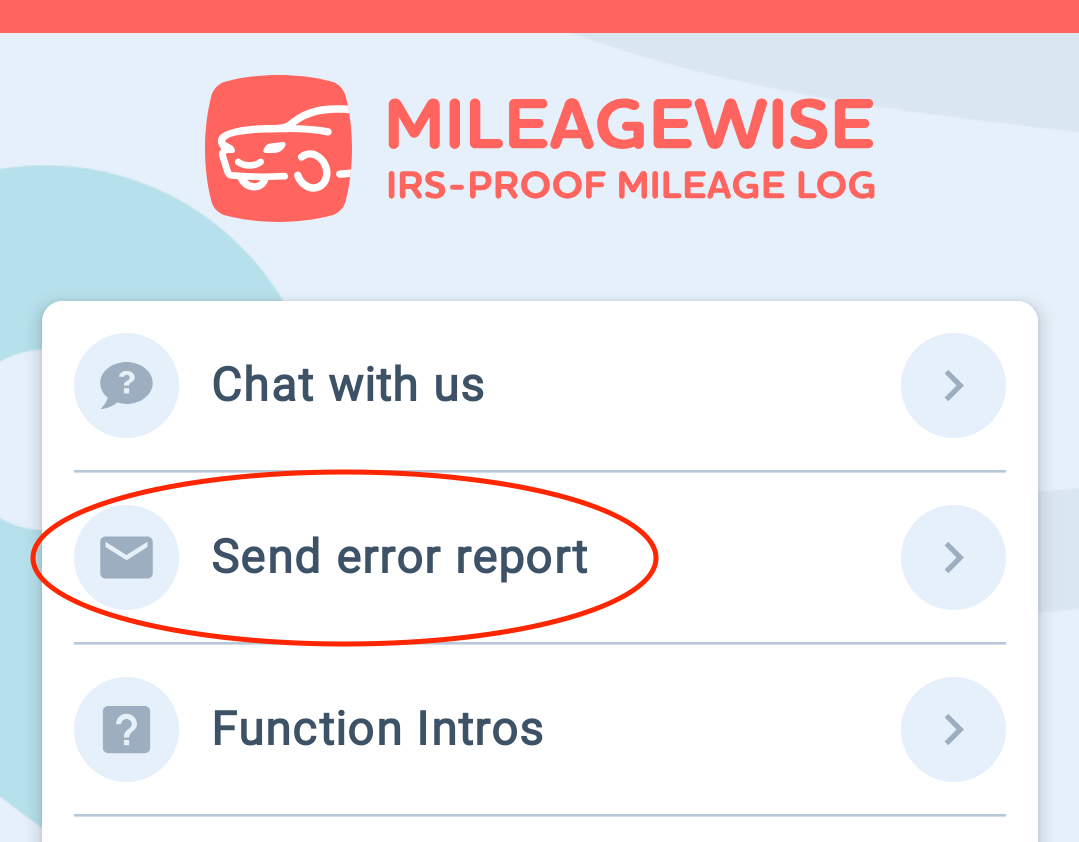
You can send us technical logs through the app to help us investigate the issue and speed up the troubleshooting process.
- Open the MileageWise app.
- Go to the Help tab.
- Select Send Error Report and follow the instructions.
9. How to Add Trips That Were Not Recorded
If some of your trips are missing from your mileage log, you can add them manually.
Depending on how many trips are missing, you have two options:
- Missing a few individual trips? You can add them one by one using the Add screen. Follow our guide: How to Add a Trip in the Mileage Tracker App.
- Missing an entire day with recurring trips? If you have similar trips recorded on another day, you can copy them to the missing date instead of adding each trip individually. See How to Copy or Transfer Trips for step-by-step instructions.
- Want to explore other trip management options in the mobile app? Visit the Managing Your Trips section of our Mobile App Help Center.
- Using a desktop computer? The MileageWise Dashboard is available on desktop, where you can use the AI Wizard to recreate missing trips or even fill in an entire month’s mileage log.
Choose the method that best fits your situation to keep your mileage log complete.
