What Is the Auto-Recording Switch?
The Auto-Recording Switch feature allows you to temporarily turn off automatic trip recording and choose when it should resume. This is useful when you don’t want MileageWise to record trips automatically for a certain period but don’t want to remember to turn automatic recording back on yourself.
The feature is available with automatic recording options, such as Vehicle Movement Monitoring, Bluetooth Monitoring, and Phone Charge Monitoring.
How Does the Auto-Recording Switch Work?
When automatic recording is enabled, the Auto-Recording Switch switch is turned on by default.
If you want to temporarily stop automatic recording, tap the switch in the top-right corner of the Settings screen. A window will appear where you can choose whether automatic recording should resume automatically or remain off until you turn it back on manually.
You can choose between two options: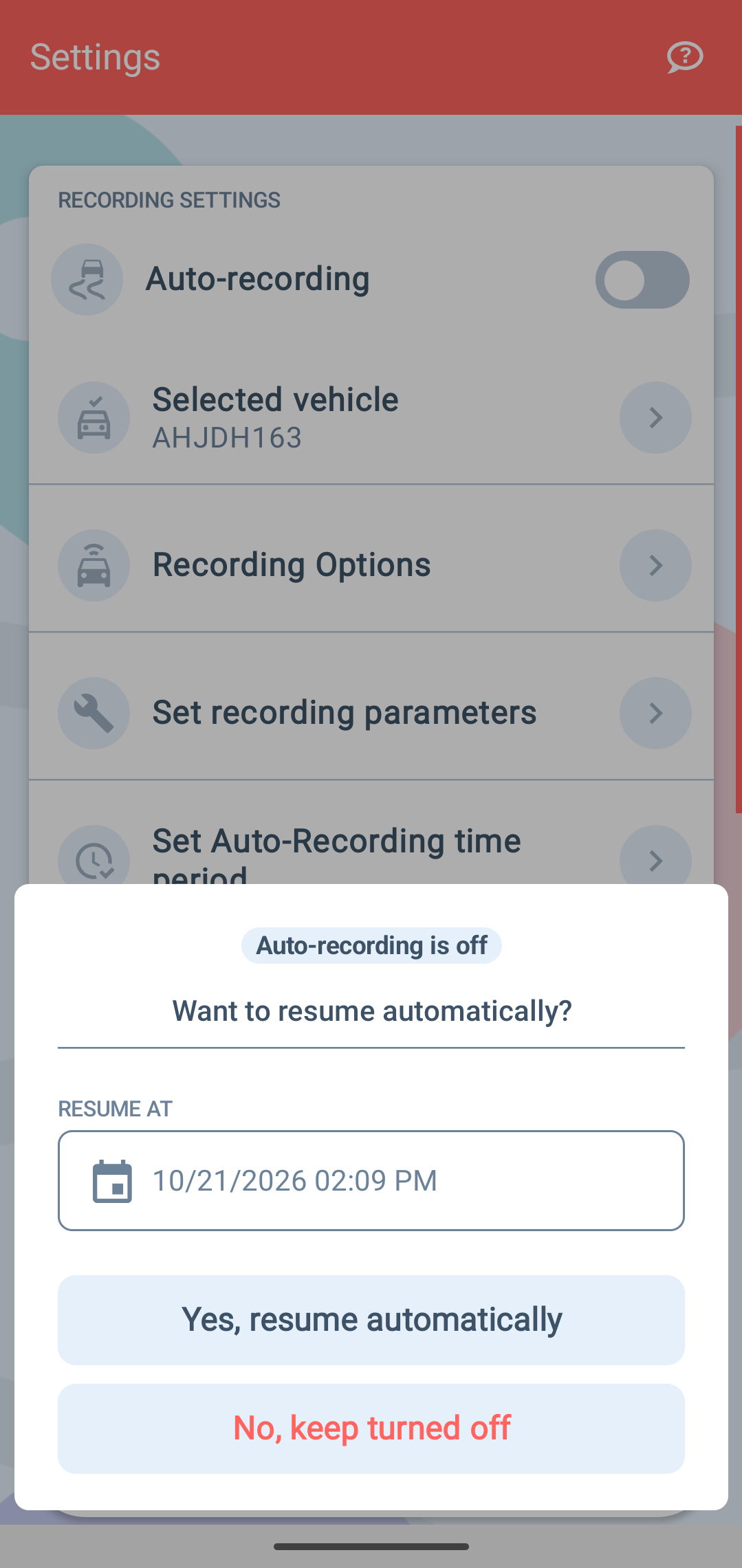
- Yes, resume automatically: Select the date and time when you want automatic recording to resume. MileageWise will automatically reactivate it at the specified time.
- No, keep turned off: Automatic recording will remain off until you manually turn it back on.
How Do I Schedule Automatic Recording to Resume?
- Open the MileageWise app.
- Go to Settings.
- Locate the Auto-Recording Switch in the top-right corner.
- Tap the switch to turn automatic recording off.
- In the pop-up window, select the date and time under Resume At.
- Tap Yes, resume automatically.
Automatic recording will resume at the date and time you selected.
How Do I Keep Automatic Recording Turned Off?
If you don’t want automatic recording to resume automatically:
- Open the MileageWise app and go to Settings.
- Tap the Auto-Recording Switch in the top-right corner.
- In the pop-up window, tap No, keep turned off.
Automatic recording will remain off until you manually turn the switch back on.
Which Recording Options Support This Feature?
The Auto-Recording Switch feature is available with automatic recording options, including:
- Automatic Tracking
- Bluetooth Monitoring
- Phone Charge Monitoring
It is not intended for manual trip recording.
Still Need Help?
If you have questions about automatic trip recording, see our guide, Why Wasn’t My Trip Recorded?, for additional troubleshooting steps. If you need further assistance, please contact our Customer Support team.
