If MileageWise records trips when you don’t want it to, or continues recording when you expect it to stop, one or more settings may need adjustment.
Follow the questions below to identify the possible cause and adjust your recording settings.
1. Have You Turned Off Automatic Recording?
MileageWise lets you temporarily disable automatic recording using the switch in the Settings menu.
When you turn automatic recording off, the app asks when it should turn back on. Depending on your selection, automatic recording may resume later without further action.
If you selected Never, automatic recording will remain disabled until you manually turn it on again.
If the app records trips when you don’t expect it to, check whether automatic recording is enabled and review the selected reactivation option.
Learn more about controlling automatic recording.
2. Is Your Auto-Recording Time Period Set Correctly?
The Auto-Recording Time Period determines the days and hours during which automatic trip recording is allowed.
If the configured time period includes hours when you don’t want trips to be recorded, the app may record trips during those times.
Open MileageWise and go to Settings → Set Auto-Recording Time Period to review your schedule.
Make sure the selected days and hours match when you want automatic recording to be active.
Learn more about Auto-Recording Time Period.
3. Is Your Standby Timer Set Correctly?
The Standby Timer determines how long the app waits during a stop before treating it as the end of a trip.
If the timer is too short, brief stops may be treated as the end of a trip. When you resume driving, the app may start recording another trip, even if you consider the entire journey a single trip.
We recommend a Standby Timer setting of 5–10 minutes for most users.
Review your Standby Timer setting and adjust it to suit your driving habits.
Learn more about the Standby Timer.
4. Why Does MileageWise Keep Creating New Addresses Instead of Recognizing Saved Clients?
If MileageWise frequently creates new addresses instead of recognizing your saved clients, your Saved Client Recognition setting may be too low.
This setting determines how close you need to be to a saved client’s location for the app to recognize it.
If the recognition distance is too small, the app may not recognize a saved client when you arrive nearby. This can result in a new address being recorded instead of the existing saved client.
Review your Saved Client Recognition setting and adjust the recognition distance as needed.
Learn more about Saved Client Recognition.
5. Still Experiencing Unwanted Recording?
If you’ve reviewed these settings and MileageWise still records trips unexpectedly, please contact our Support Team or send us an error report directly from the mobile app.
Send an Error Report
You can send us technical logs through the app to help us investigate the issue and speed up the troubleshooting process.
Send an Error Report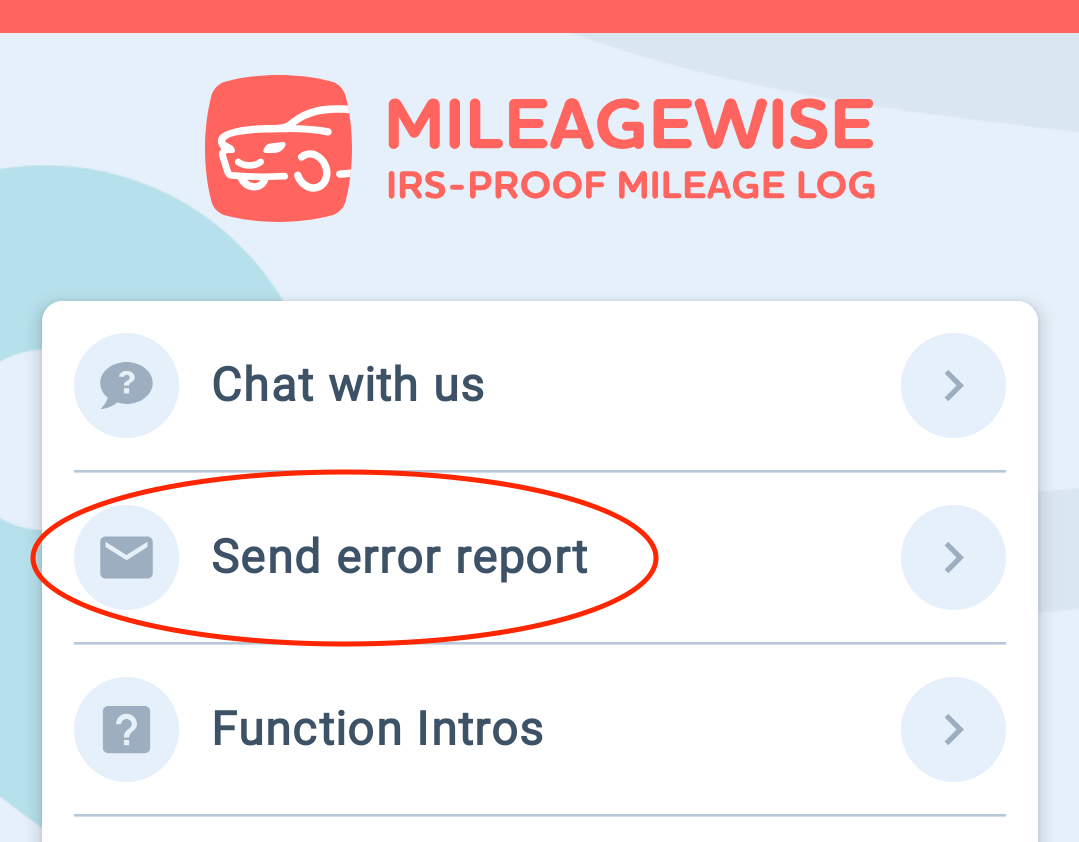
You can send us technical logs through the app to help us investigate the issue and speed up the troubleshooting process.
- Open the MileageWise app.
- Go to the Help tab.
- Select Send Error Report and follow the instructions.
How to Delete Unwanted Trips
If MileageWise has recorded trips you didn’t intend to record, you can remove them from your trip history.
You can delete unwanted trips by swiping left on a trip or using its pop-up menu. See our How to Delete Trips guide for step-by-step instructions.
